(Eu tenho uma versão em Português desse tutorial aqui)
Some of the resources I have avilable for download in here are in PSD files (Adobe Photoshop editable file), like my color filters for photos, for example. But because Photoshop is a paid software not everybody owns it so they could be able to use my resources.
If this is your case, just know that you don't need to be left out, you can still use these resources and in this tutorial I will show you how anybody can open and edit PSD files totally for free.
If this tutorial is relevant to you, please don't forget to give it a like and/or reblog on my Tumblr blog, to offer me a little support. 💕
On the Theme Options of some of my themes you will find options with the names "Button1 Icon", "Button2 Icon", "Button3 Icon" and so on.
Thes options are responsible for defining the icons that are seen in the menu of the theme (as shown in the first image of this post).
But what to do when you want to modify or remove these icons? Well, this is what I will be teaching in this tutorial.
First of all, using these icons is optional, so if you don't want to include icons in the menu of your theme, simply leave the text field of these options empty:
If you never used a custom theme before and don't know how to install one in your blog, in this tutorial I come to explain how to get and install my Tumblr themes the correct way.
Step by step:
1) Go to my Resources Page, chose a theme and click on its "Download/Install" button:
The layout of a theme can contain the following elements: Posts, Header, Sidebar, Footer and Pagination. These are how different sections of theme are called depending on where they are positioned inside the layout.
It's important to know how to identify them in case you're reading a tutorial that mentions one or more of them, in case you're customizing a theme or thinking about making a commission (since you'll need to provide details about your preferences for all the elements in the layout).
Well, first, here goes a graphic representation of each element of a theme:
(Last updated in 21/04/2019) - (Versão em Português deste tutorial aqui!)
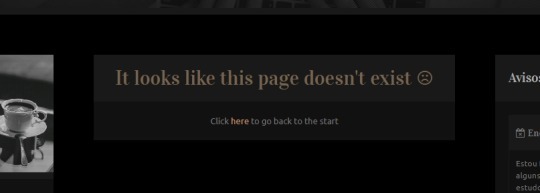
I've been searching for a way to customize "Not found" pages on themes for Tumblr for a while. I found a few tutorials about it, but none of them would work in every blog, they would only work for blogs of a certain language (since the code would select the page basing on the error phrase that it shows, and this phrase changes according to the language of the blog, making it impossible for the script to find it in blogs that are set in other languages).
Until one day, as I was studying JQuery (thanks to W3Schools), I found a method that could work for any blog on Tumblr, since it selects the page based on its status (whether it's an error page or not). I tried it and it worked! 🙌 So, to anyone interested, here is my tutorial on how to customize "not found" pages on Tumblr using Ajax.
(Last updated in 15/04/2019) - (Versão em Português deste tutorial aqui!)
If, like me, you like your blog to look organized, but at the same time like to reblog a little bit of everything and it ends up messing with the appearance of your blog, you must have already thought "how good it would be if I could hide posts that I reblogged because I liked, but that don't match the aesthetic of my theme very well"... Another similar situation would be if you'd like to hide reblogged posts and show only your original posts in the first page.
Well, that would be possible to do using two different logics based in the use of tags. Let's say that you tagged some of your posts with "#photo", you could make your theme:
Method 1) Show only the posts that contain the tag "#photo";
Method 2) Or, show all posts, except fot the ones that contain the tag "#photo".
I've tried a couple times to use the method 2, but, unfortunately, I still can't make a script that execute this function without messing up with the entire theme. So, for now, the only available option that I know is the method 1, and that's the one I'll be teaching you to use in this post.
How does it work?
You'll install a script in your theme that will make the first page of your blog redirect to a tag page of your choice (if you don't know how to use/access tags, read these articles); this way, when anybody open your blog, the first posts they will see will be the ones tagged with this specific tag.
(Latest updated in 04/03/2022) - (Versão em Português deste post aqui!)
Not every problem that happen to a theme is a defect that already came with it. There are many things you can do while installing or customizing a theme that can corrupt its code and cause issues.
In this post I listed the most common problems that happen with themes and showed how to solve them as well as how to avoid other problems.
Read the following table with the most common issues and if one of them sounds similar to what's happening to you, then click on all of the causes in front of it. If this post don't help you, then contact me via Ask on Tumblr and explain to me in detail what is going on with your theme (if possible, send prints to show me what you mean).
In this tutorial I will be showing you how to organize the captions (comments) of the posts on Tumblr without needing to use any script.
I found this method in the "Undocumented Documentation" that @bychloethemes did, where she shows some blocks and variables that are not yet registered on the official Tumblr documentation. In her documentation she talks about this method in a brief way, so if you rather a brief explanation you can go check her page. But if you want a little more details about it, then you can keep on reading my tutorial.